Warning threshold reached
Example Workflow reaches its configured 80% warning threshold: 8,000 of 10,000 AI units.
GETTING STARTED · INTERACTIVE GUIDE
Find your way around Oracle AI Agent Studio. Explore each workspace and hover over or tap a question mark to learn what a control does.
The redesigned Studio interface · From release 26C
Explore Studio. Choose a workspace and a screen. Hover over or tap ? for help, or select a tab to explore its controls.
Explore · Understand · BuildChoose a path to follow the controls in order, or explore any workspace below.
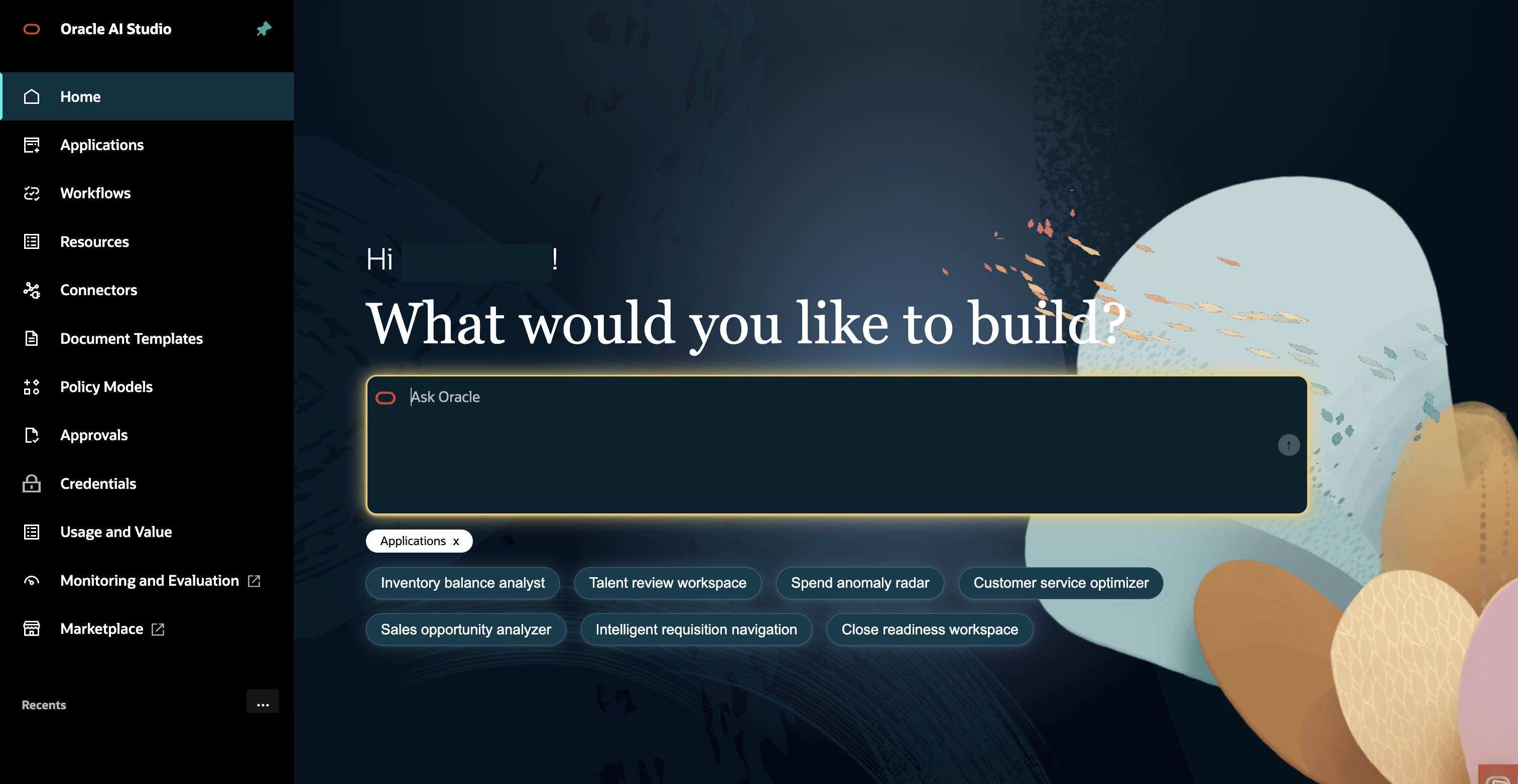
Arrow badges mark controls that open another walkthrough view. Use Back to retrace your route, or Overview to move up. Question marks explain controls; you can move onto an explanation to follow its documentation link. Use Tab on a keyboard, or tap on a touch screen. Escape or a tap outside dismisses the explanation.
A quick reference for controls you may encounter while building.
The redesigned interface was introduced in release 26C. Screens show a reviewed environment; features and controls vary by release, permissions, and configuration. Public references explain the related features rather than guaranteeing identical screens.
Monitoring and Evaluation and Marketplace open separately in Studio and have their own appearance.
Oracle’s 26C interface announcementLearning content & interactive annotations © 2026 Sourabh Biharia. Oracle interface and product names belong to Oracle.
Need a quick definition? Open the glossary